



Tested on: Windows 11 (Engine 4.18), November 4, 2026
This Microsoft Defender antivirus review finds that the free protection built into Windows 11 is enough for most people who stay online, but it gets noticeably weaker offline and needs a few settings fixed.
Quick verdict: it suits everyday users, students and office PCs. AV-TEST gave it 6.0/6.0 for protection, yet AV-Comparatives measured only 89.2% offline detection against 98.6% for top third-party engines.
Below you will find my real scan numbers, the two settings that cause the most trouble, and a clear guide on who can skip a paid suite.
Microsoft Defender Antivirus Review: What My Windows 11 Test Showed
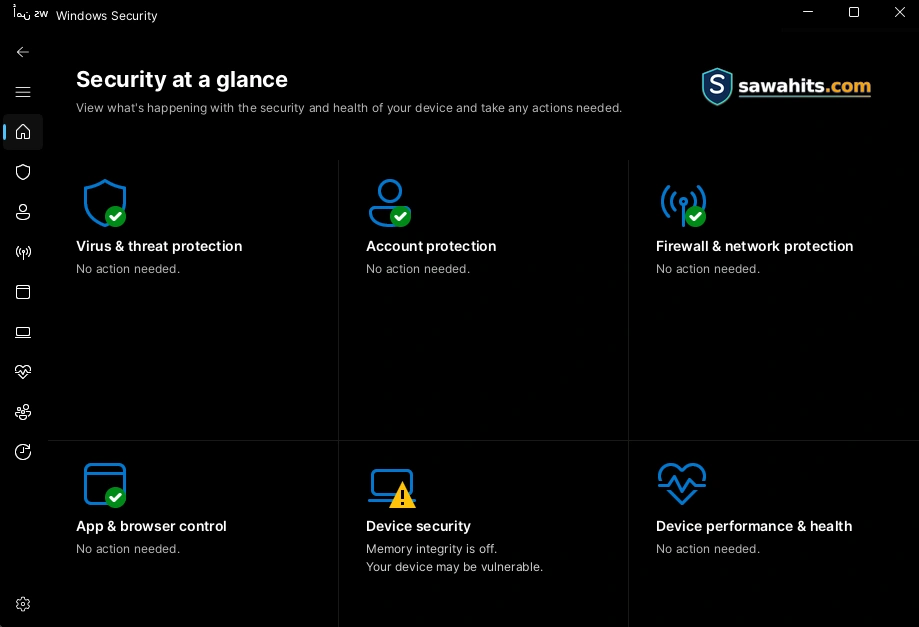
On my Windows 11 PC, Defender looks healthy at first glance. Five of the six modules show green checkmarks and “No action needed”.
The exception is Device security. It shows a yellow triangle with “Memory integrity is off. Your device may be vulnerable.” I switched it off myself, and I explain why in the gamer section below.
Hands-On Scan Performance and Ransomware Protection
A Quick Scan on November 4, 2026 checked 31,520 files in 11 minutes 0 seconds and found 0 threats. Security intelligence was up to date at the time of the scan.
The cost shows up elsewhere. When real-time protection scans large local folders, file copying and heavy archive extraction feel slower.
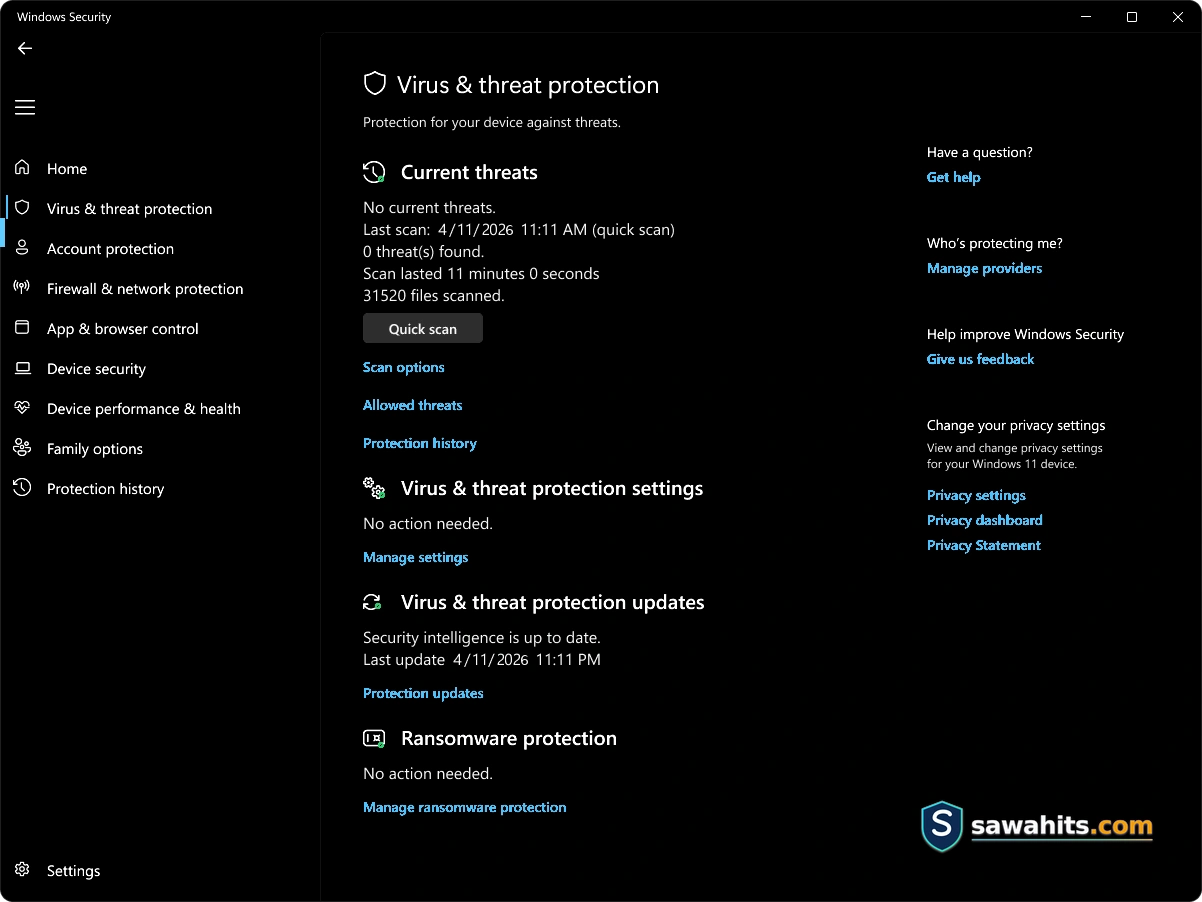
Ransomware protection deserves a closer look. Controlled folder access is still off by default in Windows 11, so your Documents folder is not guarded until you switch it on.
Our guide to configuring Windows ransomware protection and Controlled folder access walks through the full setup.
What the 2026 Lab Tests Say
Independent labs rate Defender very well online and less well offline. Both results matter, depending on how you use your PC.
- AV-TEST (May–June 2026, Windows 11 Consumer): 6.0/6.0 Protection with 100% detection of zero-day and widespread malware, 5.5/6.0 Performance, and 6.0/6.0 Usability with 0 false positives. It earned the TOP PRODUCT award.
- AV-Comparatives (2026 Real-World and Malware Protection): 99.0% to 99.93% online protection with zero false alarms.
You can check the current figures on the AV-TEST Windows home-user results page.
The Offline Gap: Why Detection Drops to 89.2%
Defender leans heavily on cloud-delivered protection, so without a connection its detection falls to 89.2%. AV-Comparatives measured 98.6% for top third-party engines in the same situation.
It matters when you travel, use unstable Wi-Fi, or work on a restricted network. Paid engines keep stronger local heuristics on the machine itself.
The lab’s own analysis is on AV-Comparatives’ “Is Microsoft Defender enough?” page.
When to Use Microsoft Defender Offline Scan (And Spot Fake Alerts)
If you suspect a rootkit or stubborn malware that hides from Windows while it runs, a Quick Scan may not catch it. The built-in Offline Scan runs before Windows loads, so it is a different tool from the 89.2% offline detection figure above.
- Open Windows Security → Virus & threat protection → Scan options.
- Select Microsoft Defender Antivirus (offline scan) and click Scan now.
- Save your work first. Your PC will restart and scan the drive before the OS loads.
Watch out for fake browser alerts: real Microsoft Defender warnings appear in Windows notifications and inside the Windows Security app. They never show up as a full-screen browser pop-up with an alarm sound or a support phone number.
If a page claims your PC is locked by “Windows Defender Security Center”, close the browser from Task Manager (Ctrl + Shift + Esc) and never call the listed number.
The Browser Blind Spot: SmartScreen Works Best in Edge
Defender’s anti-phishing layer, SmartScreen, works best inside Microsoft Edge and Outlook. In Chrome, Firefox or Brave your URL filtering is weaker unless you add protection.
If you use one of those browsers, keep its own phishing and malware protection turned on. Also be careful with links that arrive by email.
The Gamer’s Dilemma: Memory Integrity and Exclusions
Many gamers turn Memory integrity off to avoid micro-stuttering and kernel anti-cheat conflicts, and I did the same. It is a real trade-off: smoother frames in exchange for weaker kernel protection.
A safer move for performance is a folder exclusion for your game library, not turning off real-time protection. Keep exclusions limited to folders you fully trust.
Problems and Fixes
Fix 1: Controlled folder access blocks a legitimate app or game save
When enabled, it can block trusted apps from writing to Documents. The fix takes a minute:
- Open Windows Security → Virus & threat protection → Manage ransomware protection.
- Open Controlled folder access and select Allow an app through Controlled folder access.
- Add the blocked app’s executable, then try saving again.
Fix 2: Resolving “Memory integrity is off”
Go to Windows Security → Device security → Core isolation details and switch Memory integrity on. If Windows lists an incompatible driver, update that driver first.
Gamers who see stuttering or anti-cheat errors can leave it off. Then add a game-folder exclusion under Virus & threat protection → Manage settings → Exclusions and keep real-time protection on.
Smart App Control tip
After the April 2026 Windows 11 update, Smart App Control can be switched on or off at any time under App & browser control. A clean reinstall of Windows is no longer required.
Free Defender vs. Microsoft 365 vs. Paid Suites
Paying for Microsoft 365 just to get “Defender” does not upgrade your Windows scanning engine. It only adds a cross-device dashboard and US-only identity monitoring.
| Feature | Built-in Defender (Free) | Microsoft 365 + Defender for Individuals | Top Paid Suites (~$30–$50/yr) |
|---|---|---|---|
| Price | $0 | $99.99/yr (Personal) or $129.99/yr (Family) | ~$30–$50/yr |
| Windows scanning engine | Defender | Same Defender, not upgraded | Vendor’s own engine |
| Offline detection (AV-Comparatives) | 89.2% | 89.2% (same engine) | 98.6% (top third-party engines) |
| Cross-device dashboard (Android/iOS/Mac) | No | Yes | Varies by product |
| Identity theft monitoring | No | US-only (Experian) | Varies by product |
If you live outside the US, the Microsoft 365 route adds little for security. Microsoft describes the built-in protection on its official Windows security page. For paid options, see our head-to-head comparison of ESET, Kaspersky and Bitdefender.
Pros and Cons
- Pro: free and already installed on Windows 10 and 11.
- Pro: 6.0/6.0 Protection and 0 false positives in AV-TEST.
- Pro: my Quick Scan found 0 threats across 31,520 files.
- Con: offline detection of 89.2% trails paid engines.
- Con: slower file copying and archive extraction with real-time scanning.
- Con: Controlled folder access is off by default and can block legitimate apps.
Who Should Stick with Defender, and Who Needs a Paid Suite
Stick with Defender if you are online most of the time, use Edge or a browser with strong built-in phishing protection, and keep Windows updated. Turn on Controlled folder access and you are in a solid position.
Consider a paid suite if you often work offline or on restricted networks, share a PC with less careful users, or want extra layers such as stronger local detection and a bundled VPN.
Frequently Asked Questions
Does Microsoft Defender slow down my PC or hurt gaming?
Is Microsoft Defender protection good when I am offline?
Does Defender block phishing in Chrome and Firefox?
Does Defender still protect Windows 10 in 2026?
Can I run Defender alongside another antivirus?
Final Verdict
Microsoft Defender is a strong choice for most Windows 11 users who are mostly online, and it costs nothing. Turn on Controlled folder access and keep real-time protection enabled.
It is not the best fit for people who frequently work offline, because of the 89.2% offline detection. In that case a paid suite with stronger local detection is the better reason to spend $30–$50 a year.


